AI Context Assistant — Editorial Suggestions
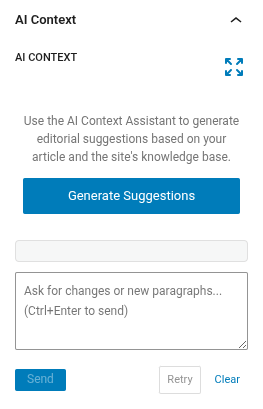
The AI Context Assistant is a Gutenberg sidebar panel that helps you enrich your articles with AI-suggested paragraphs and references to related content from your site's knowledge base.
See AI in JEO to learn how RAG, agents, and conversation memory power this feature.
Opening the panel
- Open or create a post in the Gutenberg editor (the post type must be enabled in JEO Settings → General).
- In the Document sidebar, find the AI Context panel.
- If the panel is collapsed, click its title to expand it.
Generating suggestions
Click Generate Suggestions. The AI will analyze your article's content and the site's vectorized article archive to produce:
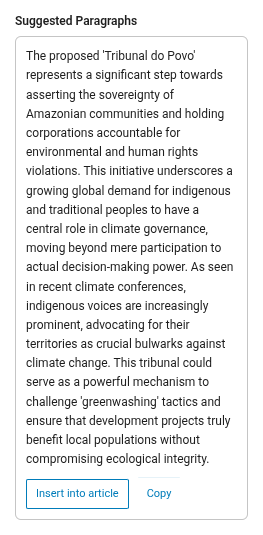
- Suggested paragraphs — ready-to-insert text blocks that complement your article. Paragraphs may include inline formatting (bold, italic) and links to related articles.
- Related references — articles from your knowledge base that are relevant to the topic.
The generation is not automatic — you control when it runs to avoid unnecessary API calls.
Using suggested paragraphs
Each suggested paragraph has two actions:
Insert into article
Click Insert into article to add the paragraph as a Gutenberg core/paragraph block at the end of the document. Inline formatting and links are preserved. Once inserted, the button changes to Inserted to prevent duplicates.
Copy
Click Copy to copy the paragraph as rich text (HTML with links) to your clipboard. You can then paste it anywhere — the WordPress editor, Google Docs, Word, etc. The copy uses a triple-fallback mechanism for maximum compatibility:
- Modern
ClipboardItemAPI (HTML + plain text) - DOM selection +
execCommand('copy')(works in Gutenberg iframes) - Plain text only (universal fallback)
Refining with chat
After the initial generation, you can refine suggestions through the chat textarea:
- "Make it shorter" — condenses the suggested paragraphs.
- "Focus on environmental impact" — rewrites with a specific angle.
- "Add more historical context" — expands with additional background.
- "Include data about the Amazon region" — adds region-specific content.
Press Ctrl+Enter or click Send to submit your message.
Retry
Click Retry to ask the AI to generate new suggestions without typing a message. Useful when you want a different take on the same topic.
Clear
Click Clear to reset the entire conversation and remove all suggestions. A new conversation starts fresh on the next "Generate Suggestions" click.
Expanding the panel
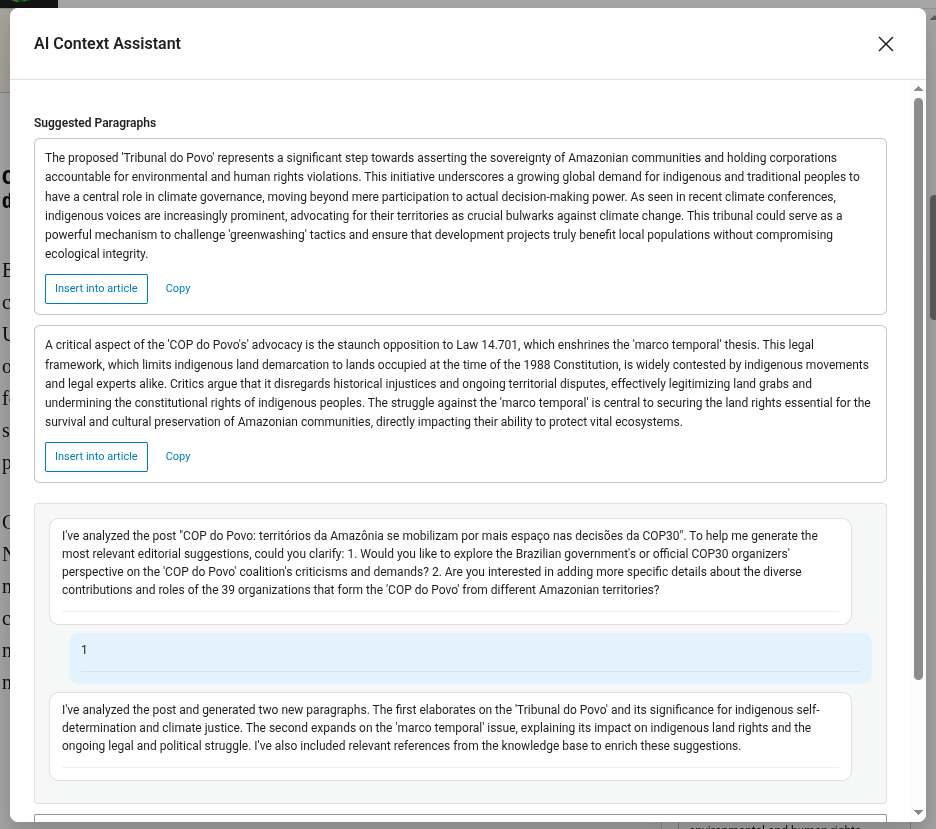
Click the expand button (top-right corner of the panel) to open the chat interface in a larger modal. This provides a better experience for longer conversations. The modal shares the same state as the compact panel.
Persistence
Your conversation is saved automatically. If you close the panel, refresh the page, or reopen the editor later, your chat history and last suggestions are restored.
Customizing the AI prompt
By default, the Context Assistant uses a built-in system prompt optimized for editorial suggestions. You can customize it:
- Go to JEO → AI Configuration → Context Assistant tab.
- Check "Use a custom system prompt".
- Edit the prompt in the textarea.
- Save settings.
When unchecked, the tab shows the default prompt in a read-only field for reference.
Requirements
- An AI provider must be configured in JEO → AI (see AI Settings).
- For best results, index your posts in the Knowledge Base (JEO → AI → Knowledge Base tab). The assistant uses RAG to find related articles from the vectorized archive.
- The article must have at least 100 characters of content before the AI can generate suggestions. If the article is too short, the assistant will ask you to write more or specify what you want.